Event Mesh Entrypoints
An Event Mesh entrypoint subscribes to topics on a Solace event broker and dispatches each received message to an agent or workflow. You define one or more event rules: each rule binds a set of topic subscriptions to one target, builds the target's input from the payload (a prompt template for agents, an input expression for workflows), and optionally publishes the target's response back to the event broker.
This page covers creating and managing Event Mesh entrypoints from the Entrypoints page in the Solace Agent Mesh UI. For the shared model that every entrypoint type follows (deployment lifecycle, status fields, credentials, and RBAC), see Configuring Entrypoints. To define the same entrypoint as version-controllable YAML instead, see Event Mesh Entrypoints with the CLI.
Two Event Brokers: System and Data-Plane
An Event Mesh entrypoint sources events from one Solace event broker. Two event brokers are involved:
-
The system event broker that Agent Mesh uses for internal agent-to-agent traffic.
-
The data-plane event broker that delivers external events to the entrypoint.
The two event brokers can be the same Solace event broker, or two different event brokers. The system event broker carries control-plane traffic between agents; the data-plane event broker carries the business events this entrypoint processes. You always enter the data-plane event broker connection details when you configure the entrypoint.
Desktop mode — When you run Agent Mesh in desktop mode, you can leave the event broker host empty to fall back to the local development event broker. This convenience is for development and trial use only; in a deployed environment, always enter explicit event broker connection details.
Prerequisites
Before you create an Event Mesh entrypoint, ensure that you have:
-
Access to a reachable Solace event broker.
-
Topic subscription permissions on the event broker for every topic listed in your rules, or consume permissions on a pre-provisioned queue when a rule binds to one.
-
Network connectivity from Agent Mesh to the event broker, if the entrypoint connects to a different event broker than the system event broker.
Solace Event Broker Access
The entrypoint needs a reachable Solace event broker. Use the same event broker Agent Mesh runs on for its system traffic, or a separate event broker for the data plane.
Topic Subscription Permissions
The event broker client the entrypoint authenticates as must hold ACL permissions to subscribe to every topic listed in the rules. Work with your Solace administrator to configure the appropriate ACL profile.
Network Connectivity
If the entrypoint connects to a separate event broker, confirm that firewalls and security groups allow outbound traffic from Agent Mesh to that event broker. The entrypoint accepts event broker URLs with the tcp, tcps, ws, or wss scheme.
Creating an Event Mesh Entrypoint
The following steps create an entrypoint called Order Processing Entrypoint that consumes order events from a commerce/orders/> topic subscription and routes them to an order-processor agent.
-
On the Entrypoints page, select Create Entrypoint, then select the Event Mesh Entrypoint tile.
-
Give the entrypoint a Name and a Description:
-
Name:
Order Processing Entrypoint -
Description:
Routes commerce order events to the order-processor agent.
-
-
Enter the Broker Connection details:
-
Host: event broker URI with scheme and port, for example
tcps://commerce-broker.example.com:55443. The scheme must betcp,tcps,ws, orwss. -
Message VPN: the Solace message VPN to connect to.
-
Client Username: the Solace client username.
-
TLS Certificate Verification: Verify Certificates (Secure) validates the event broker's TLS certificate against trusted CAs. Skip Verification (Insecure) disables validation and suits development environments only.
Select Test Connection after filling the connection fields to validate credentials against the event broker before saving.
-
-
Fill in the Client Password. When you edit an existing entrypoint, leave the placeholder to keep the saved password. If you change the Host or TLS Certificate Verification, enter the password again. Agent Mesh does not use the saved password with changed connection settings, so without a new password the connection test fails and you cannot save the entrypoint.
-
Add at least one event rule. Every Event Mesh entrypoint needs at least one rule. Select Add Rule to open the Add Event Rule dialog, then fill in:
-
Name:
process_orders. Rule identifier unique within the entrypoint; allowed characters are letters, digits,_, and-. Uniqueness is case-insensitive.
Under Incoming Events:
-
Topics:
commerce/orders/>. Select Add Topic to add one or more Solace topic subscriptions.*matches one topic level;>matches one or more levels. -
Message Format: JSON (the default) or Text. The additional payload encodings the runtime supports (
xml,raw_bytes,protobuf,structured) are available only when the entrypoint is defined in YAML with thesamCLI.
Under Target:
-
Target Type: Agent (the default) or Workflow.
-
Agent or Workflow Name: name of the agent or workflow that handles matching messages. The picker defaults to
Orchestratorfor the Agent target type. -
Additional Instructions:
Process this event {payload}(the default template). This field appears for agent targets only. The runtime combines the value with the target agent's system prompt when it dispatches the task.{payload}expands to the full payload,{topic}expands to the inbound topic, and{payload.path.to.field}extracts a field from a JSON payload.
A workflow target created in the UI receives empty input, because the UI has no field for an input expression. To pass the event to a workflow, define the entrypoint in YAML and set
inputExpressionon the rule. For more information, see Event Mesh Entrypoints with the CLI.Under Structured Invocation, leave Enable structured invocation clear for a rule that takes text input and returns text output. Select it to attach JSON Schemas when the rule targets an agent. The agent validates its result against the Output schema and retries when the result does not match, and the Success output publishes the validated object. A workflow target ignores these schemas and applies its own.
Under Event Acknowledgment, leave Defer acknowledgment until processing completes clear to acknowledge the event broker on receipt (the default), or select it to hold the acknowledgment until the target completes.
Under Outgoing Responses, both Success Response and Error Response are enabled by default and require a topic. Enter the destination topic in the topic textbox beneath each checkbox. For example, use
commerce/orders/processedfor Success, andcommerce/orders/errorsfor Error. Clear the checkbox to drop the corresponding response instead of publishing it.Select Add to save the rule.
-
-
Select Create and Deploy to save the entrypoint and connect it to the event broker. Its deployment status moves to
deployedand its runtime status moves torunningafter the event broker subscriptions are established.
Event Rule Reference
An Event Mesh entrypoint has one or more event rules. Each rule matches a set of topics and dispatches to one target. The tables in this section describe every field an event rule can carry. The Agent Mesh UI dialog exposes a simplified subset with different labels: the subscriptions array is labeled Topics, promptTemplate is labeled Additional Instructions, messageFormat offers only JSON and Text in the UI, and the full acknowledgmentPolicy and output shapes (Response type, Topic type, and so on) are settable only through the CLI. The existingQueueName field is CLI-only, and an entrypoint whose rules set it is managed entirely from the CLI; see Binding to a Pre-Provisioned Queue. For the YAML that corresponds to every field in this section, see Event Mesh Entrypoints with the CLI.
Subscriptions and Payload Decoding
| Field | Required | Description |
|---|---|---|
| Rule name | Yes | Identifier unique within the entrypoint. Allowed characters: letters, digits, _, and -. Case-insensitive uniqueness applies. |
| Subscriptions | Conditional | One or more Solace topics. * matches one level; > matches one or more levels. Labeled Topics in the UI. Required unless Existing queue name is set, and mutually exclusive with it. |
existingQueueName
|
Conditional | Name of a Solace queue that already exists on the event broker. When set, the entrypoint binds to that queue as a consumer only; the queue's owner provisions it and manages its topic subscriptions. Required unless Subscriptions is set, and mutually exclusive with it. CLI-only field; an entrypoint whose rules set it is managed from the CLI, and the Agent Mesh UI blocks View and Edit for it. See Binding to a Pre-Provisioned Queue. |
| Message format | No | Inbound payload encoding. One of json, text, xml, raw_bytes, protobuf, or structured. Defaults to json. The UI exposes only json and text. |
Target
| Field | Required | Description |
|---|---|---|
| Target agent | Conditional | Name of the agent that handles matching messages. Mutually exclusive with Target workflow |
| Target workflow | Conditional | Name of the workflow that handles matching messages. Mutually exclusive with Target agent |
| Prompt template | Conditional | Template rendered against the inbound message and combined with the target agent's system prompt at dispatch. Required for agent targets, including a rule that sets no target, which routes to the Orchestrator agent. Not used by workflow targets. Labeled Additional Instructions in the UI. |
| Input expression | Conditional | Expression that builds the input for a workflow target. Set it on every workflow target; without it, the workflow receives empty input. Settable only through the CLI. |
Identity Attribution
| Field | Required | Description |
|---|---|---|
| Default user identity | No | Static identity string applied to every event this rule processes |
| User identity expression | No | Expression that resolves to the user identity per message. Takes precedence over Default user identity |
| Run as system user | No | The system user the rule runs as when no per-message identity resolves. default uses the built-in default; a custom name uses a scoped one |
Under enforced RBAC, an event with no resolved per-message identity runs as the rule's Run as system user. With none configured, it runs as the built-in default system user, which can invoke any agent or workflow that does not declare required_scopes. The exception is a rule that sets User identity expression and no Default user identity. Setting the expression declares that every event carries its own identity, so when the expression resolves to nothing, the entrypoint discards the event rather than running it as a system user. If the rule's Error output is enabled, the entrypoint publishes the rejection there.
A system:-prefixed value arriving in a message (for example, from an identity expression over attacker-controllable fields) is rejected: only the operator's run_as may name a system user. See Machine Entrypoints and System Users.
Optional Shape Extensions
| Field | Required | Description |
|---|---|---|
| Forward context | No | Map of context-key to expression. The entrypoint evaluates each expression against the inbound message and forwards the resulting map to the output handler's expression context |
| Structured invocation | No | Schema-validated invocation for agent targets. Input schema and Output schema are JSON Schemas. When the Input schema is anything other than a single text property, the agent receives the event payload as JSON and validates the payload against the Input schema. For a rule defined in YAML whose Input expression selects a field, the agent validates that field's value instead. The agent validates its result against the Output schema and retries on a mismatch. The task response carries the validated object only in its structured output, so the Success output of such a rule defaults to Response type structured. Response type text emits empty text, and Response type full emits only a reference to the result. The entrypoint publishes a result that still fails validation on the Error output, or on the Success output when the Error output is disabled. Workflow targets ignore this field and apply the workflow's own schemas |
| Acknowledgment policy | No | Controls when the entrypoint acknowledges the event broker. See the following section |
Acknowledgment Policy
The acknowledgment policy controls event-broker-level message acknowledgment.
| Field | Required | Description |
|---|---|---|
| Mode | No | on_receive (the default) acknowledges the event broker immediately on receipt. on_completion defers the acknowledgment until the target completes |
| Timeout (seconds) | No | Maximum wait for a completion signal when Mode is on_completion. Defaults to 300. After the timeout elapses, the deferred acknowledgment settles per the On failure block |
| On failure > Action | No | nack (the default) returns a negative acknowledgment to the event broker. ack acknowledges anyway |
| On failure > Nack outcome | No | Used when Action is nack. rejected (the default) drops the message; failed redelivers it |
Outputs
Each rule supports a Success output and an Error output. Configure either output, both, or neither. When an output is disabled, the entrypoint drops the corresponding response instead of publishing it. The one exception is a failed workflow run or structured invocation: when the Error output is disabled and the Success output is enabled, the entrypoint publishes the failure on the Success output.
The entrypoint chooses the output based on how the run ends:
| Outcome | Published on |
|---|---|
| The run completes successfully | Success output |
| A workflow run ends in a failed, rejected, or canceled state | Error output when it is enabled; otherwise the Success output |
| An agent returns a result that still fails validation against the Structured invocation Output schema after the agent retries | Error output when it is enabled; otherwise the Success output |
| An agent run without Structured invocation returns a result in any state, including the failed state after a tool call fails | Success output |
The agent or workflow returns an error instead of a result. For example, the event's identity lacks a scope that the target agent declares in required_scopes, the model call fails, or the target stops responding and the task times out. |
Error output |
| The rule's User identity expression resolves to no identity, and the rule sets no Default user identity | Error output |
When the entrypoint cannot submit an event as a request, it publishes nothing on either output. For example, a target expression or input expression fails to evaluate, or the event's identity lacks the scope to invoke the target. The one exception is an event whose User identity expression resolves to no identity on a rule that sets no Default user identity. The entrypoint rejects that event and publishes the rejection on the Error output, as the preceding table shows.
On the Error output, text holds the failure message, and the task response contains an error object with code and message (a2a_task_response.error in expressions). The code is -32603 for a failed, rejected, or canceled workflow run or a failed structured invocation, and -32003 for an event whose User identity expression resolves to no identity. For any other failure, the code is the one the underlying request error returned.
When the entrypoint publishes a failed workflow run or a failed structured invocation, it acknowledges the event, so the event broker does not redeliver it. When the agent or workflow returns an error, or the entrypoint cannot submit the event as a request, the entrypoint applies the rule's On failure > Action setting if the acknowledgment Mode is on_completion. If the Timeout (seconds) value elapses before the task completes or times out, the entrypoint applies the same On failure > Action setting and publishes nothing at that point. The task keeps running, and the entrypoint still publishes the task's result, or the error from a later task timeout, as the preceding table describes. This acknowledgment timeout is separate from the task timeout, which publishes on the Error output.
Each output has the following fields:
| Field | Required | Description |
|---|---|---|
| Enabled | No | When true (the default), the entrypoint publishes this output. When false, the entrypoint drops it |
| Topic | Yes (when enabled) | Destination topic. The entrypoint publishes to the literal value when Topic type is static, or evaluates the value as an expression template when Topic type is dynamic |
| Topic type | No | static (the default) publishes to the literal topic. dynamic evaluates Topic as an expression template against the response |
| Response type | No | Which slice of the A2A task response to publish. The text type emits only the final text. For a workflow target, the final text is a status line, such as Workflow "order-intake" completed successfully. The full type emits the entire task response JSON. The structured type emits the structured output: for an agent target with Structured invocation, the object the agent validated against the Output schema; for a workflow target, the workflow result. The error type emits the task error. The custom type evaluates the Custom expression that follows. The Success output defaults to structured for an agent target with Structured invocation and to text otherwise. The Error output defaults to error |
| Custom expression | Conditional | Expression evaluated against the response. Required when Response type is custom |
A rule with Structured invocation publishes the validated object only when the Success output's Response type is structured, which is its default. With Response type full, the Success output carries only a reference to the result, and with Response type text, it carries empty text.
A workflow result is the object that the output mapping of the workflow builds. To publish it, set Response type to structured, or set Response type to custom and set Custom expression to input.payload:data[0].
A failed workflow run has no workflow result. If the Error output is disabled and the Success output is enabled, the entrypoint publishes the failure on the Success output, where the Custom expression input.payload:data[0] evaluates to null. To have consumers receive a failed run as an error rather than as null, enable the Error output on each rule that targets a workflow. The same applies to a rule with Structured invocation: if the Error output is disabled, the entrypoint publishes a failed run on the Success output with the failure in text, and Response type structured publishes null.
Binding to a Pre-Provisioned Queue
By default, each event rule has a durable Solace queue that Agent Mesh provisions on the event broker and whose topic subscriptions Agent Mesh manages. A rule can instead bind to a queue that already exists on the event broker.
Set existingQueueName on the rule to the queue's name on the event broker. This field is CLI-only; set it with sam config apply. When it is set:
-
The entrypoint binds to the queue as a consumer only. It never provisions the queue, modifies its configuration, or deletes it.
-
The entrypoint adds no topic subscriptions to the queue. The queue's owner fans events into the queue by adding the appropriate topic subscriptions on the event broker.
-
Undeploying or deleting the entrypoint leaves the queue, and any messages still on it, in place.
-
If the queue is not yet on the event broker, or the event broker rejects the bind (for example, the client lacks the consume permission), the deployment does not fail and sibling rules are unaffected. The rule retries the bind in the background with exponential backoff, and starts consuming as soon as the bind succeeds. The entrypoint never provisions the queue itself; fix the queue on the event broker and the next retry picks it up without a redeploy or restart.
While the bind keeps failing, the entrypoint stays in deployment status deployed and reports runtime status degraded with the detail The pre-provisioned event broker queue is unavailable. Retrying automatically. Only the affected rule stops consuming; sibling rules on the same entrypoint keep running. For how to clear a persistent degraded status, see Pre-Provisioned Queue Shows Degraded in Troubleshooting.
existingQueueName is mutually exclusive with subscriptions: a rule sets one or the other, never both. Two rules in the same entrypoint cannot bind to the same queue, because the event broker delivers each message on a queue to only one consumer.
Both acknowledgment modes, on_receive and on_completion, work the same against a pre-provisioned queue as they do against a queue the entrypoint provisioned.
An entrypoint whose rules set existingQueueName is managed from the CLI. The Agent Mesh UI shows Entrypoint managed from the command line on both the View and Edit pages for that entrypoint, so changes to its rules, broker connection, or targets must come through another sam config apply. The entrypoint's row in the Entrypoints list still exposes Deploy, Undeploy, and Delete from the side panel.
For the YAML field and a worked example, see Bind to a Pre-Provisioned Queue on the CLI page.
Queue Permissions
The event broker client the entrypoint authenticates as needs the consume permission on the pre-provisioned queue, and a client profile that allows guaranteed message receive. The entrypoint does not require queue-provisioning rights. Work with your Solace administrator to grant the consume permission on the queue to the client username the entrypoint uses, and to assign that client a profile with guaranteed message receive enabled.
Non-Exclusive Queues for Multiple Replicas
When you run the entrypoint with more than one replica, provision the queue as Non-exclusive. Each replica binds to the same queue, and the event broker delivers each message to exactly one bound replica. An Exclusive queue delivers to one bound consumer at a time, so additional replicas remain idle until the active one disconnects. A single-replica entrypoint works with either access type.
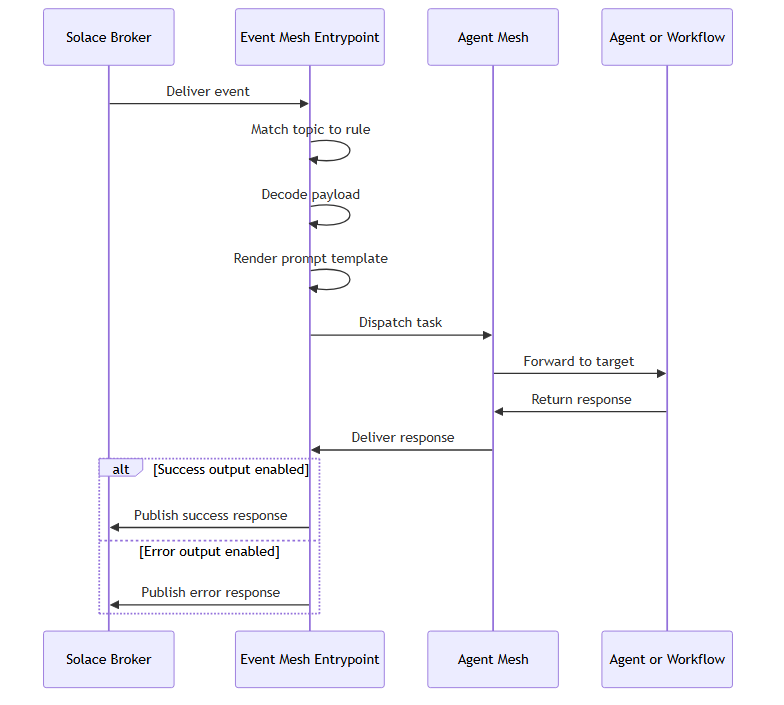
How Event Processing Works
The following diagram traces a single inbound event through the entrypoint.
Managing Event Mesh Entrypoints
Select an entrypoint's row to open its detail panel. The More menu holds the lifecycle actions, which differ by the entrypoint's state.
For a Deployed entrypoint:
-
Edit: reopen the entrypoint editor to change event broker connection, rules, or targets.
-
Update: apply the saved configuration to the running instance when the sync status is
out_of_sync. -
Undeploy: take the entrypoint offline. Event broker subscriptions close and events queue on the event broker per its ACL profile.
-
Download: export the entrypoint configuration as YAML with the event broker password replaced by an environment-variable placeholder.
For an Undeployed entrypoint:
-
Edit: reopen the entrypoint editor.
-
Deploy: bring the entrypoint online.
-
Delete: remove the entrypoint permanently.
Edit is unavailable for an entrypoint whose rules set existingQueueName, in either deployment state. The Agent Mesh UI shows Entrypoint managed from the command line on its View and Edit pages, so changes must come through sam config apply. Deploy, Undeploy, and Delete still work from the side panel.
For shared behavior across every entrypoint type (configuration drift, credential redaction, and RBAC), see Configuring Entrypoints.
Troubleshooting
The following symptoms are the ones users most often see.
Entrypoint Shows Disconnected
A deployed entrypoint shows the disconnected runtime status. Common causes are that the entrypoint process crashed, the event broker credentials are wrong, the event broker VPN is unreachable, or a firewall blocks the network path between Agent Mesh and the event broker.
To resolve, verify that:
-
The entrypoint's deployment status is
deployed. -
The entrypoint logs do not contain connection errors.
-
The Host, Message VPN, Client Username, and Client Password values are correct.
-
The event broker's TLS certificate matches the host name when TLS Certificate Verification is set to Verify.
-
Undeploy and redeploy the entrypoint after correcting the configuration.
Events Do Not Reach the Target
The event broker accepts published events on the subscribed topics, but the target never receives them. Common causes are that the subscription pattern does not match the published topic, the rule's target is undeployed, or the event broker's ACL profile denies the subscription.
To resolve, verify that:
-
The published topic matches the subscription pattern. Start with an exact match before using wildcards.
-
The Target agent or Target workflow is deployed.
-
The event broker ACL profile permits the client username to subscribe.
-
The entrypoint logs do not contain subscription or dispatch errors.
Entrypoint Logs Show Payload Decode Failures
The entrypoint receives messages but logs decode failures. Common causes are that Message format does not match the actual payload encoding, JSON messages contain invalid JSON, or text payloads use a non-UTF-8 encoding.
To resolve, verify that:
-
Message format matches the producer's encoding.
-
Sample messages validate against the declared format outside the entrypoint.
-
Producer-side serialization does not produce malformed entries.
Pre-Provisioned Queue Shows Degraded
A rule binds to a pre-provisioned queue with existingQueueName, and the entrypoint stays deployed with runtime status degraded and the detail The pre-provisioned event broker queue is unavailable. Retrying automatically. The entrypoint logs each attempt at WARN level with the message bind existing event broker queue failed; retrying. Common causes are that the queue does not exist on the event broker, the client profile does not permit guaranteed message receive, the client lacks the consume permission on the queue, or the queue is exclusive and already bound by another consumer.
The rule retries in the background with exponential backoff and starts consuming as soon as the bind succeeds, without a redeploy. Only the affected rule stops consuming; sibling rules on the same entrypoint keep running.
To resolve, verify that:
-
The queue exists on the event broker and its name matches
existingQueueNameexactly. -
The event broker client profile allows guaranteed message receive.
-
The client username has the consume permission on the queue.
-
The queue is non-exclusive, or no other consumer is bound to it.
Define Event Mesh Entrypoints as Code Instead
The Agent Mesh UI is one way to configure Event Mesh entrypoints; the sam CLI is the other. To create the same entrypoint from YAML with sam config apply, see Event Mesh Entrypoints with the CLI.
Next Steps
You have an Event Mesh entrypoint running against Agent Mesh. Most readers next want to:
-
Wire another external system: Slack Entrypoints, Microsoft Teams Entrypoints, or MCP Entrypoints.
-
Review the shared deployment lifecycle: Configuring Entrypoints.