Step 6: Test Agent Competence with Evaluations
You've completed Step 5: Create a Workflow.
Agents are non-deterministic. The same prompt can produce different responses depending on the model, temperature settings, and even minor wording changes. Before deploying an agent to production, you need to verify it handles your use cases correctly and consistently.
Evaluations are automated tests for agents. You define a set of test prompts with expected outcomes, run your agent against them, and score the results. This lets you catch regressions when you change agent instructions, compare performance across different models, and build confidence that your agent behaves as intended.
In this step, you create a dataset of test cases for your Purchase Order agent, run an evaluation experiment, and review the results.
Evaluation Components
Evaluations in Solace Agent Mesh consist of three components:
-
Datasets — Named collections of test examples, each with a prompt (a realistic request your agent should be able to handle) and an optional expected response describing what a correct answer looks like. Build datasets around your agent's actual responsibilities, including edge cases, so you can catch regressions as you change its instructions or tools.
-
Evaluators — Scorers that grade agent responses. Solace Agent Mesh includes multiple evaluator types, for example, heuristic evaluators (rule-based scoring like JSON validation or text similarity) and LLM-as-a-Judge evaluators (an LLM, or large language model, scores responses against criteria). You can also create your own evaluators.
-
Experiments — A combination of a dataset, a target agent, and one or more evaluators. Running an experiment produces results you can review and compare across runs.
For more information, see Evaluating Agent Performance.
Create a Dataset for Your Agent
Now create a dataset to test your purchase order agent:
Include all required information in your test prompts. If a prompt is missing details the agent needs (like a reorder threshold), the agent may ask clarifying questions instead of completing the task, and LLM-as-a-Judge evaluators mark incomplete responses as failures even if the agent's behavior is reasonable.
-
In Solace Agent Mesh Desktop, in the navigation bar, select Evaluations > Experiment Lab.
-
Select the Datasets tab and click Create New Dataset > Create New.
-
Enter the dataset details:
-
Name — Type "Purchase Order Tests"
-
Description — Type "Test cases for the purchase order agent"
-
-
Click + Add Example to add the first test case:
-
In the Prompt field, enter:
Generate a purchase order for 25 lbs of Arabica coffee beans. Current stock is 5 lbs, reorder threshold is 10 lbs.
-
In the Expected Response field, enter:
Should produce a formatted PO with calculated order quantity
-
Click Save.
-
-
Click + Add Example to add the second test case:
-
In the Prompt field, enter:
Create a PO for oat milk, current stock 2 gallons, reorder threshold 5 gallons
-
In the Expected Response field, enter:
Should generate a PO with dairy supplier and calculated quantity
-
Click Save.
-
-
Click Create to save the dataset.
Create and Run an Experiment
Now create an experiment that runs your dataset against the Purchase Order Generator agent:
-
Select the Experiments tab and click Create Experiment.
-
Configure the experiment:
-
Name — Type "Purchase Order Eval"
-
Description — Type "Evaluate the Purchase Order Generator agent responses"
-
Agent — Select your Purchase Order Generator agent
-
Agent Model — The drop-down list shows your two default model aliases, general and planning (configured in Step 2: Configure Your LLM Provider). Select general.
-
Dataset — Select Purchase Order Tests
-
Evaluator — Select Closed QA (an LLM-as-a-Judge evaluator that checks if responses correctly answer the prompt)
-
-
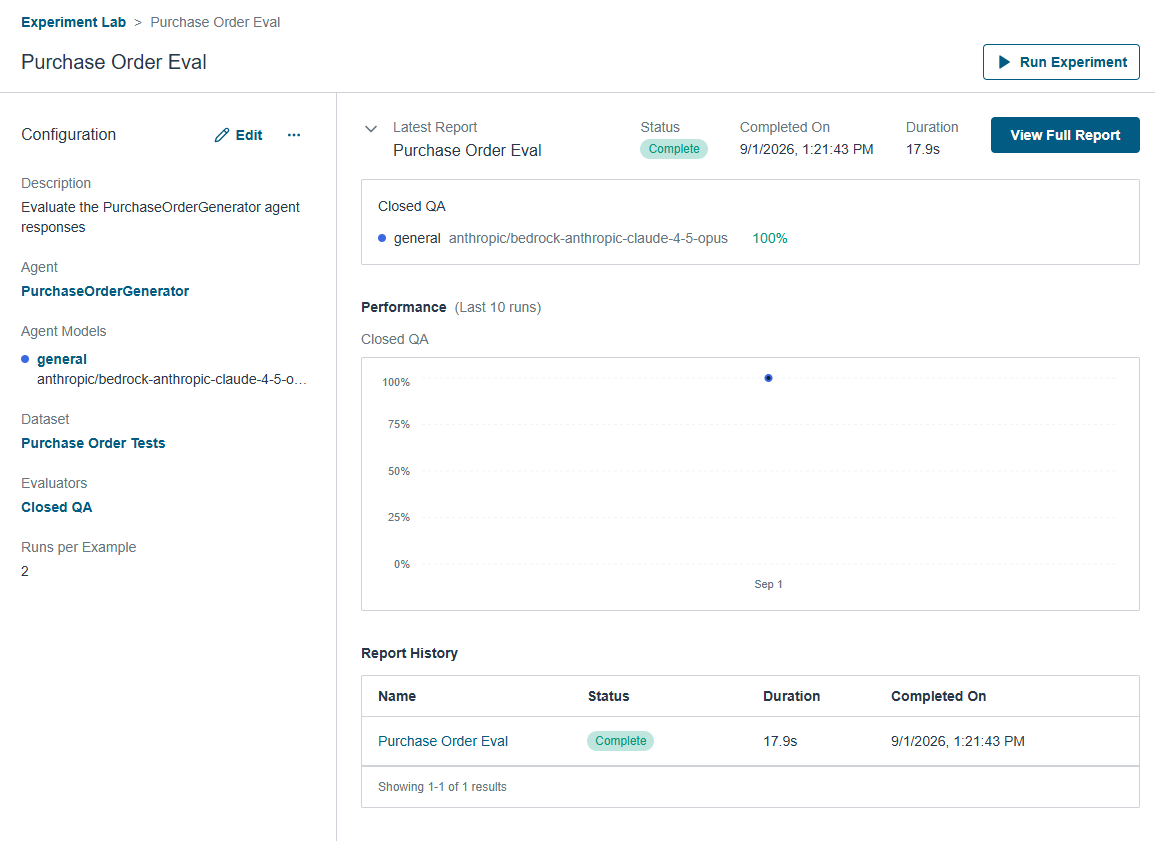
Click Create & Run to save and execute the experiment. The experiment results screen appears.
-
Experiment runs take anywhere from several seconds to a few minutes, depending on your LLM provider, model, and the number of evaluators. While a run is in progress, the results screen may show partial or no data yet. That doesn't mean the run failed. Wait for the run to reach a completed status before you review the results.
-
After the run completes, the screen shows the overall score, a performance chart tracking results over time, and a report history. Click a report name to view detailed results for each test case.
If Your Results Show Failures
Seeing some or all test cases fail is common, especially on a first run. This result isn't necessarily a sign that anything is broken. Results can vary depending on your LLM provider and model, and the most common cause of failure is a test prompt that doesn't include every detail the agent needs. When that happens, the agent may ask a clarifying question instead of completing the task, and the LLM-as-a-Judge evaluator marks the incomplete response as a failure even though the agent's behavior was reasonable.
To find out why a test case failed, click the report, then open the test case to see the LLM-as-a-Judge's reasoning:
-
If the agent asked a clarifying question or returned an incomplete response, check your test prompt for missing details (like a reorder threshold or item name) and update it.
-
If the agent's response looks correct but still failed, the evaluator's criteria may be stricter than you expected. Review the Closed QA reasoning and adjust your expected response or agent instructions to match.
After making changes, re-run the experiment to verify your improvements. A failed or partially failed run on your first attempt is a normal part of the evaluation workflow, not a sign that your setup is wrong.
Now that you've verified your agent's behavior with an evaluation, in the next lesson you'll connect your agents to an external system so they can respond to events automatically.
Tutorial Steps
You've completed step 6 of the tutorial. Click Next Lesson to continue.
| Step | Description |
|---|---|
|
|
Install Solace Agent Mesh - Complete |
|
|
Configure Your LLM Provider - Complete |
|
|
Build Multi-Agent Orchestration - Complete |
|
|
Add a Connector - Complete |
|
|
Create a Workflow - Complete |
|
|
Test Agent Competence with Evaluations - Complete |
|
|
Add an Entrypoint - Next Lesson |
|
|
Next Steps |


You can return to the main Tutorial page at any time.